Move files between iPhone and PC over Wi-Fi
Files Across sends photos, videos and any other file between your iPhone or iPad and a Windows, Linux or Mac computer over Wi-Fi. The computer just opens a web page: no cable, no app to install.
Free · iPhone and iPad, iOS 17 or later · Optional one-time Pro upgrade, no subscription
- Nothing to install on the computer
- No account or sign-up
- Works without internet
- Original quality
- No ads or tracking
What is Files Across?
A Wi-Fi bridge between your iPhone and any computer's browser
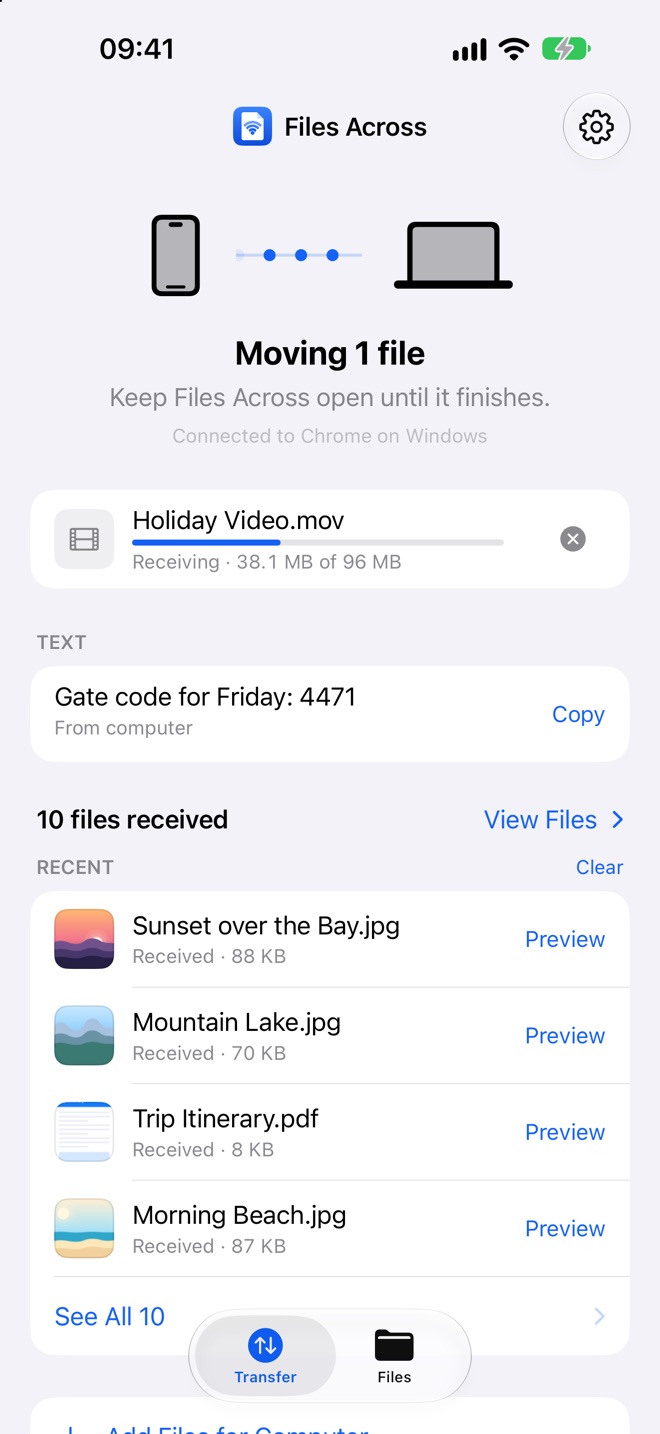
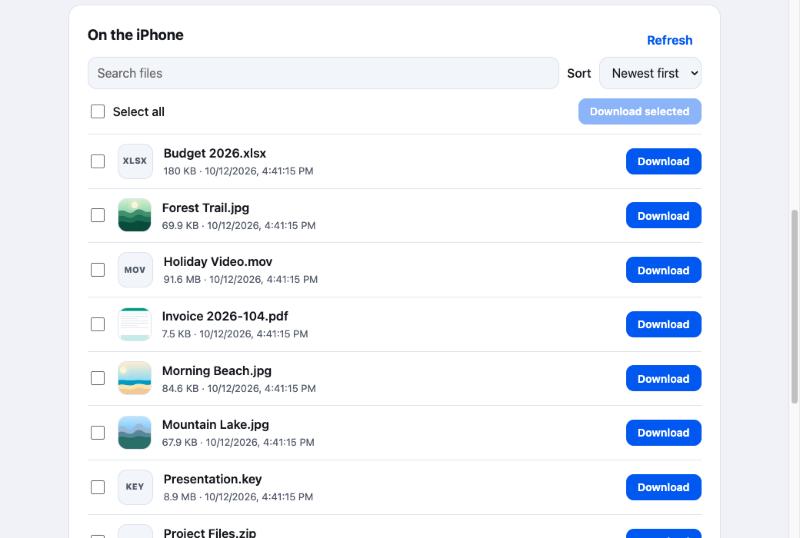
Files Across is an iPhone and iPad app for transferring files to and from a computer over the local network. The phone runs a small private web page while you're sharing. You type its address into the browser on your Windows PC, Linux machine or Mac, enter a six-digit code, and then drag files onto the page to send them to the phone, or click Download to save files from the phone. There's no USB cable, iTunes, desktop app, account or cloud upload involved.
How it works
Connected in three steps
Put both devices on the same network, such as your home Wi-Fi. A computer plugged into the same router by Ethernet works too.
-
Tap Connect Computer
Files Across shows a web address like
http://192.168.1.42:8080and a six-digit code.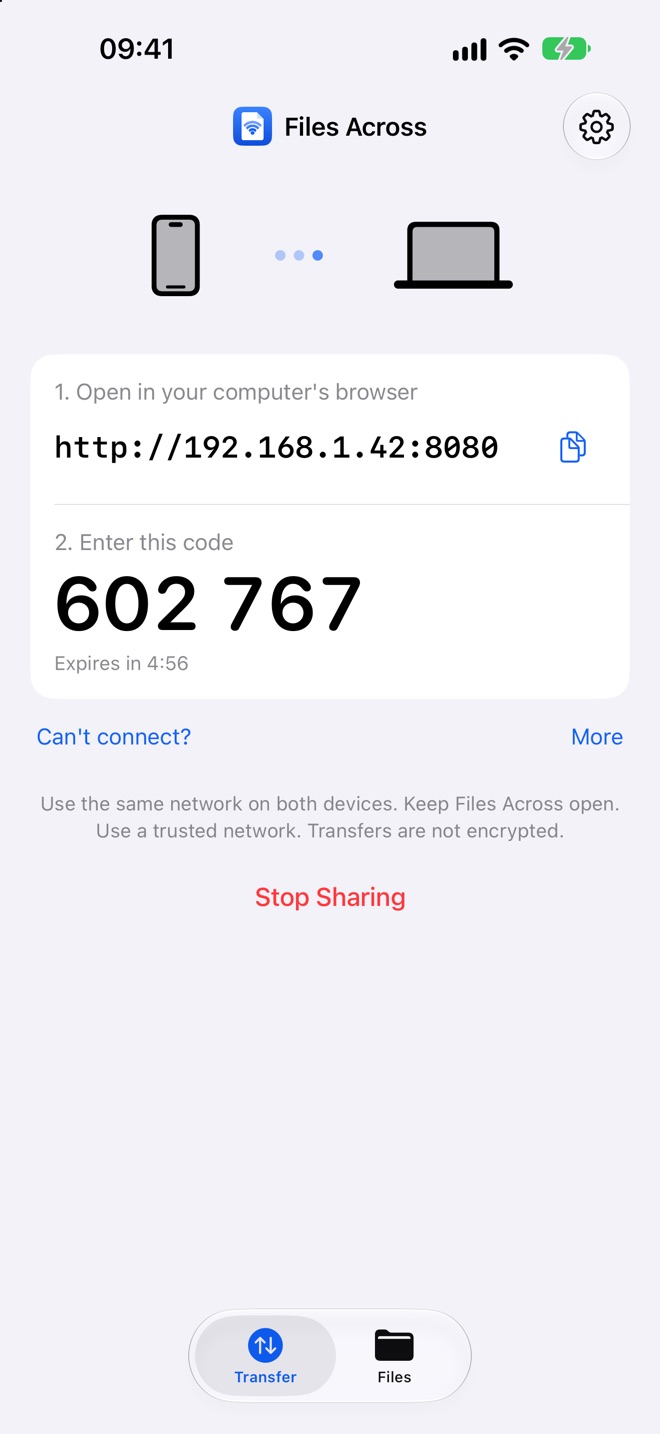
-
Open it in your browser
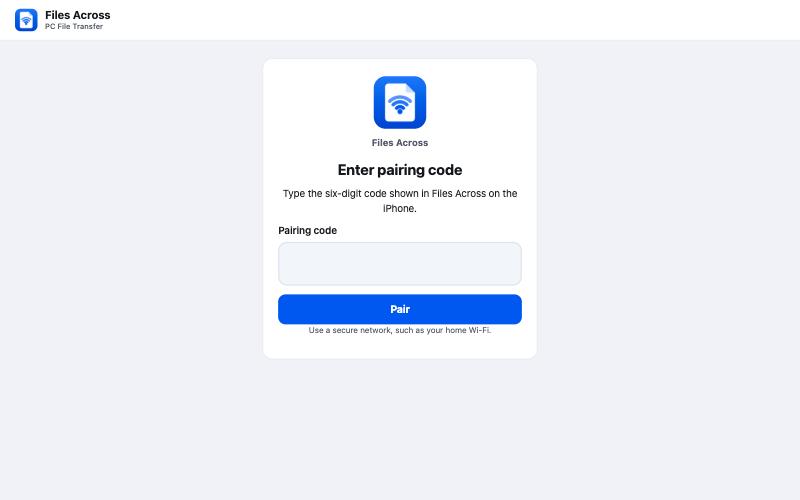
Type the address into Chrome, Edge or Firefox on the computer and enter the code. The code works once and expires after five minutes.
-
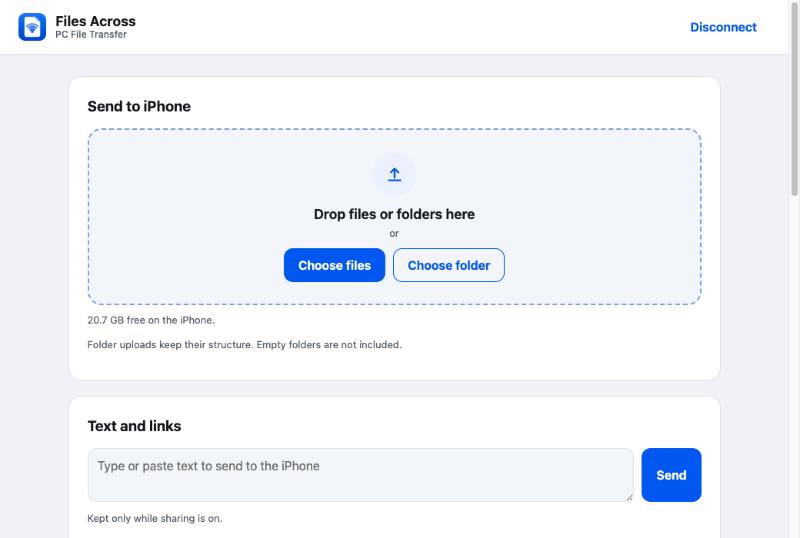
Drop files or click Download
Drag files onto the page to send them to the iPhone, or download anything you've shared from the phone. Both sides show live progress.
Features
Everything you need to move files, nothing you don't
Both directions
Send files from the computer to the iPhone, and download files and photos from the iPhone to the computer, in the same session.
Any computer with a browser
Windows, Linux or Mac. No installer, driver, extension, iTunes or Apple Devices app on the computer.
Local and offline
Files go straight from device to device on your network. No cloud relay, and no internet connection needed.
Original quality
Photos, videos and documents arrive byte for byte, in their original format. Large files are streamed, not loaded into memory.
Text and links
Paste a link, an address or a code on one side and copy it on the other. Kept only while sharing is on.
No duplicate storage
Files you add are shared where they are, not copied into the app. Received files land in On My iPhone › Files Across in the Files app.
Photo library export PRO
Copy your whole photo library to your computer
Thousands of photos and videos, organized by month, saved through your browser's normal downloads.
- Download each month as a ZIP, or the whole library as one ZIP with a folder per month.
- Interrupted? Completed months are remembered, so Download remaining picks up where you left off.
- Pick individual photos from a month with previews.
- Original files, including edits as shown in Photos. Optionally convert HEIC to JPG and include Live Photo videos.
- Nothing is copied into the app first; the phone only needs room for about two items at a time.
Pricing
Free to use. Upgrade once if you need more.
No subscription, no ads, no daily transfer quota.
Free
$0
For everyday transfers.
- Transfers in both directions
- Up to 5 files per batch
- Any file type, original quality
- Text and links
- Preview, share, save to Photos or Files
Pro ONE-TIME
$6.99
US price, paid once. Prices vary by country.
- Everything in Free
- Unlimited files per batch
- Whole-folder upload from the computer
- Photo library export by month
- HEIC to JPG conversion on download
Try every Pro feature free for one sharing session. Nothing renews.
Compared
Other ways to move files from iPhone to PC
Each option has its place. Files Across is for when you want a quick, private transfer to any computer without setup.
| Method | Install on computer | Internet needed | Windows & Linux | Original quality |
|---|---|---|---|---|
| Files Across | Nothing (browser) | No | Yes | Yes |
| USB cable | Apple Devices app on Windows for most files (photo import is built in) | No | Windows; Linux needs extra tools | Yes |
| Cloud storage (iCloud, Google Drive…) | Usually a browser or app | Yes, upload and download | Yes | Usually; depends on settings |
| Email or messaging yourself | None | Yes | Yes | Often compressed or size-limited |
| AirDrop | None | No | Apple devices only | Yes |
Privacy and security
Your files never touch our servers. We don't have any.
Files Across has no account, analytics, ads or tracking. Its App Store privacy label is Data Not Collected.
One-time pairing code
A fresh six-digit code for every session, valid once and for five minutes. Repeated wrong guesses are locked out, and only one browser can be connected at a time.
Only what you share
The computer sees your Files Across folder and the files you add. Nothing else on your iPhone is reachable.
Sharing ends when you leave
Stop Sharing, locking the phone, switching apps or changing networks ends the session and signs the browser out.
Use a trusted network
Transfers are not encrypted, so use your home or another network you trust rather than public Wi-Fi. More about security
Fact sheet
Files Across at a glance
- App name
- Files Across: PC File Transfer
- Platform
- iPhone and iPad, iOS / iPadOS 17 or later
- Computer
- Windows, Linux or Mac with a current web browser (Chrome, Edge, Firefox)
- Connection
- Same local network: Wi-Fi, or Ethernet on the same router. Internet not required
- Directions
- Computer → iPhone and iPhone → computer
- File types
- Any: photos, videos, documents, archives, audio and more
- File size
- Up to 100 GB per file, limited by free storage
- Price
- Free; optional one-time Pro upgrade (US$6.99 in the US)
- Account
- None
- Data collected
- None (no analytics, ads or tracking)
- Developer
- Stefan Dasic, independent developer
- Contact
- support@filesacrossapp.com
FAQ
Frequently asked questions
How do I transfer files from iPhone to a PC without a cable?
Connect the iPhone and the PC to the same network, open Files Across and tap Connect Computer. Type the address it shows into the PC's web browser, enter the six-digit code, and download files from the page or drop files onto it to send them to the iPhone.
Do I need to install anything on my computer?
No. The iPhone serves the transfer page itself, so the computer only needs a current web browser such as Chrome, Edge or Firefox. There is no desktop app, browser extension, driver or account.
Does Files Across work with Linux and Mac?
Yes. Any computer with a current web browser on the same local network can connect, including Windows, Linux distributions such as Ubuntu and Fedora, and macOS.
Does it need an internet connection?
No. Files travel directly between your devices over your local network, and transfers work with no internet access. Only items stored solely in iCloud or another cloud provider must be downloaded to the iPhone first, which needs internet.
Are photos and videos compressed?
No. Files are transferred byte for byte in their original format and quality. Converting HEIC photos to JPG is an optional Pro setting.
Is there a file size limit?
Not a small one: single files up to 100 GB are accepted, as long as the receiving device has room. The free version sends up to 5 files per batch; Pro removes that limit.
Can I copy my whole iPhone photo library to a PC?
Yes, with Pro. The browser shows your library by month and downloads each month as a ZIP file, or the whole library as one ZIP. Completed months are remembered, so you can continue later with the remaining months.
Is it secure?
Transfers stay on your local network and a browser can connect only with a one-time six-digit code that expires after five minutes. The connection is not encrypted, so use Files Across on a network you trust, such as your home Wi-Fi, not public Wi-Fi.
Why does sharing stop when I lock my iPhone?
iOS pauses apps that are not on screen, so Files Across ends the session when you leave the app or lock the phone. Keep the app open until transfers finish; the screen stays awake while sharing.
Does Files Across make extra copies of my files?
No. Files you add from the Files app or Photos are shared from where they are, not copied into the app, so a 400 MB video does not take another 400 MB.
How much does Files Across cost?
Files Across is free to download and use, with up to 5 files per batch in either direction. Files Across Pro is an optional one-time purchase (US$6.99 in the US; prices vary by country) with no subscription. You can try Pro free for one sharing session.
Can't connect? See troubleshooting.
Your next file is one web page away
Free on the App Store for iPhone and iPad.
Download on theApp Store